Hide faces, names and numbers in any screenshot
Pip, a free photo and screenshot redactor, finds them for you; tap to hide; location data removed. Nothing leaves your phone.
Choose or paste a screenshot
or drop it here, or press Ctrl+V / ⌘V
You picked several images. Batch (a whole set at once) is part of Pro, coming soon; we opened the first one.
Check every box before you save. Detection can miss things, especially small, blurry or handwritten text and faces turned away. Tap a box to uncover it; tap a word to cover it; use Draw a box for anything else.
Location data removed. The original had GPS coordinates in it; the copy you save has none.
Pro is coming soon · $9.99 lifetime or $2.99 a month
- No daily limit (the free plan will allow 3 images a day)
- Batch: a whole set of screenshots or photos at once
- Video face blur (later)
Everything above is free while we launch. Leave your email and we'll write once, when Pro is ready.
Runs in your browser. Nothing is uploaded. No sign-up.
- iMessage
- Bank statements
- Photos
- ID copies
- PNG, JPEG, HEIC
Example
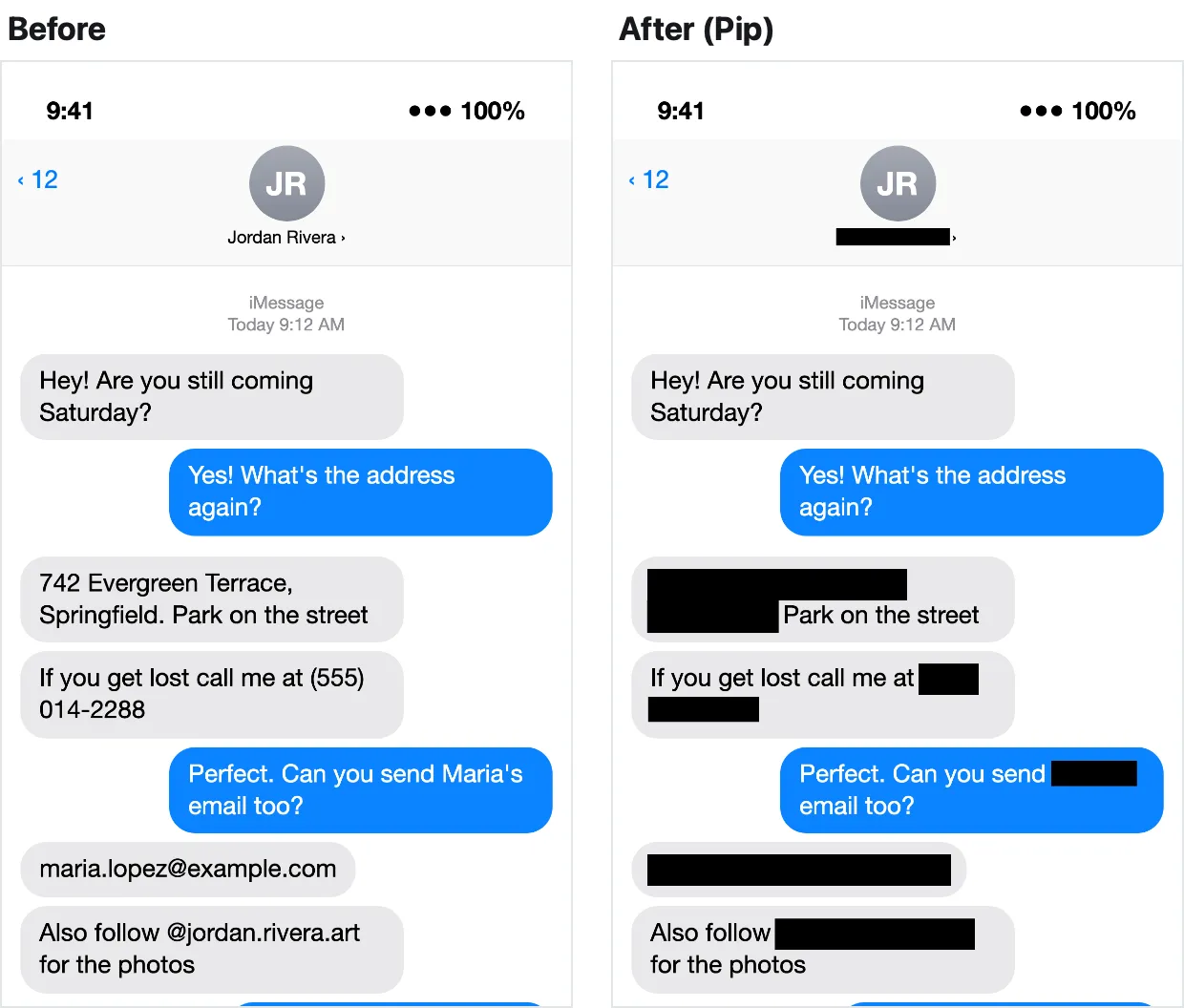
A made-up chat screenshot before and after, made with the tool on this page: the contact name, an address, a phone number, a second name, an email and a username were found and covered automatically.
How it works
-
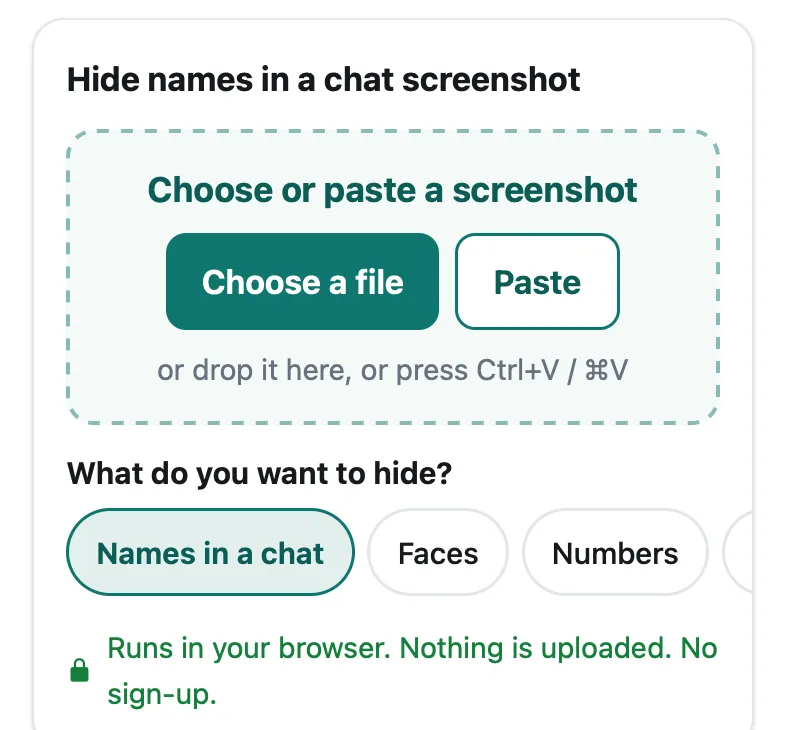 Choose or paste a screenshot Pick it from Photos or Files, drop it on the box, or paste it. Pick what to hide: names in a chat, faces, numbers, an address, a plate.
-
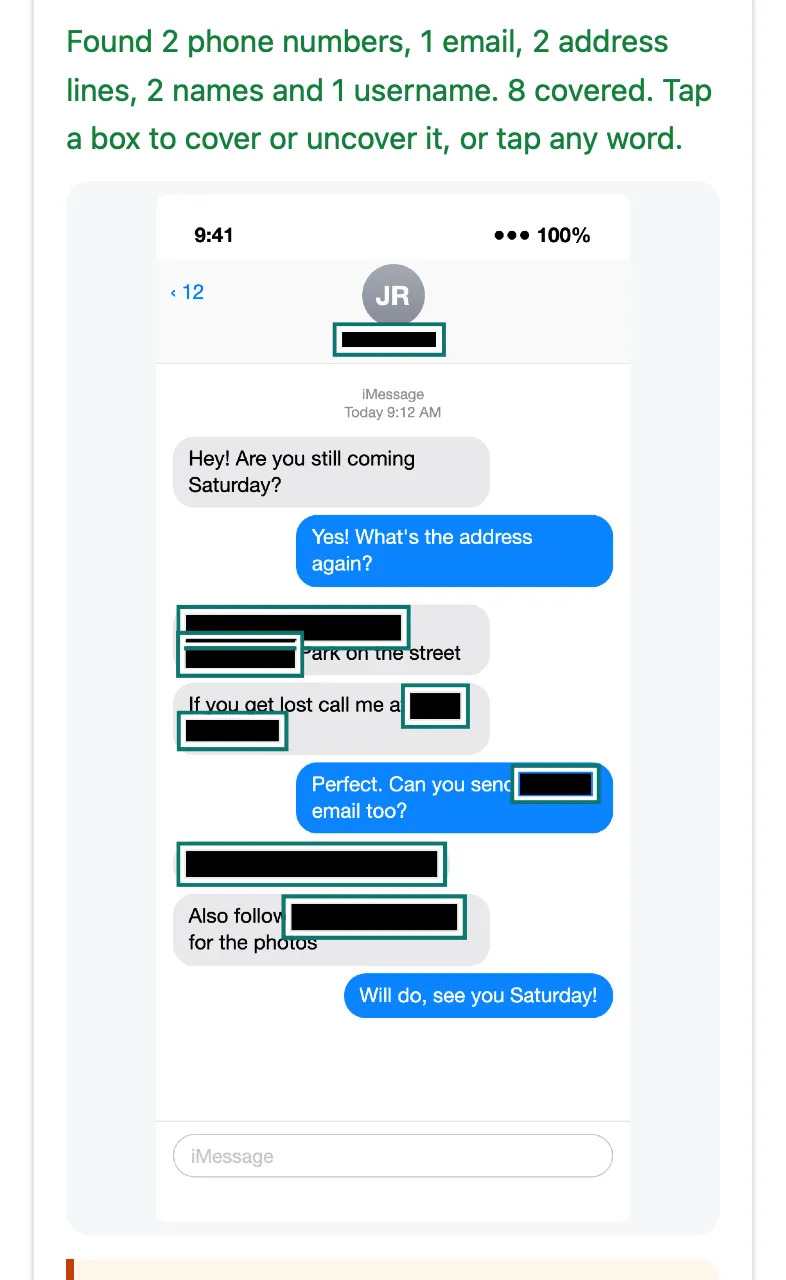 Tap to fix what it found Private details are covered with solid boxes; tap a box to uncover it, tap any word to cover it, or draw your own box.
-
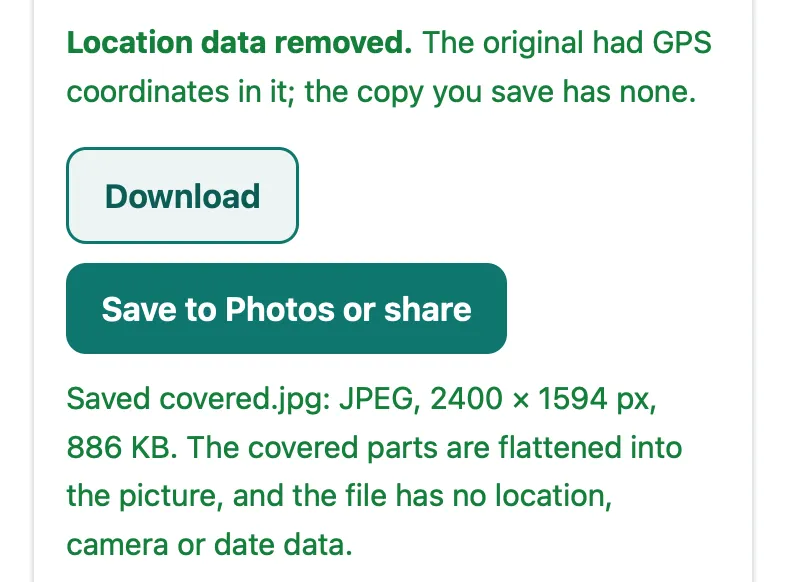 Save the clean copy Download it, or Save to Photos on a phone. The cover is flattened into the pixels and the location, camera and date data are gone.
What people use it for
- Sharing a chatHide the contact name, group members, numbers and usernames in a WhatsApp or iMessage screenshot.
- Any screenshot with textNames, emails, phone, card and account numbers covered so they can't be read back.
- Group photosBlur every face on iPhone without an app; tap the ones to keep.
- For a landlord or lenderBlack out account, routing and card numbers on a statement before you send it.
- Selling a carCover the plate in your listing photos.
- Before you send a photoSee whether it carries its GPS location, then remove it without re-saving the picture.
- Sending a copy of your IDCover the code lines and number, and stamp who the copy is for.
- Posting photos of kidsBlur or put an emoji over faces, and leave out where it was taken.
Why you can trust it
Price
Free · today
- Every feature, as many images as you like, while we launch
- Faces, names and numbers found for you
- Solid box, blur, pixels or emoji; your own boxes
- Location, camera and date removed from every copy
Pro coming soon
$9.99 lifetime or $2.99 a month
- No daily limit (the free plan will allow 3 images a day)
- Batch: a whole set of screenshots or photos at once
- Video face blur (later)
Tell me when Pro is ready
Everything above is free while we launch. Leave your email and we'll write once, when Pro is ready.
Questions people ask
Is it safe? Do you see my screenshots?
No. Pip runs in your browser: the picture is opened, searched and saved on your own device and never uploaded. The only downloads are the tool itself and, the first time you use them, the face finder and text reader (about 16 MB and 7 MB).
Is blurring text enough to hide it?
Not always. In our test, a text reader read all 6 private details back through a light 3-pixel blur, and published tools have recovered pixelated text. Pip uses a solid box for text by default; see can blurred text be unblurred?.
What does it find by itself?
Faces that face the camera, and in text: names in chats, usernames, emails, phone, card and account numbers, IBANs, addresses, license plates and passport code lines. Everything else it read can be covered with a tap.
Will it find everything?
No tool does. Small, blurry, handwritten or sideways text and faces turned away can be missed, so check every box before you save. You can tap any word to cover it or draw your own box.
Does it remove the location from my photo?
Yes. The saved image is redrawn from the pixels, so it has no location, camera or date data, and the tool says Location data removed when the original had GPS. To clean a photo without covering anything, use the remove location tool.
Does it work on iPhone without an app?
Yes. Open this page in Safari, tap Choose a file and pick from Photos or Files, or copy a screenshot and tap Paste. When you're done, tap Save to Photos or share, then Save Image.
Does it work on Android and computers?
Yes, in Chrome, Safari, Edge and Firefox. On a computer you can also drop a file on the box or paste a screenshot with Ctrl+V or ⌘V.
Is the saved image the same size?
Yes, up to 16.7 megapixels, the largest picture iPhone Safari can draw; bigger photos are saved at that size. Screenshots are saved as PNG and photos as JPEG.
Is it free?
Yes, free while we launch, with no sign-up and no watermark. A Pro plan with no daily limit and batch saving is planned; see pricing.
Guides
- Blur kids' faces before postingBlur or cover your kids' faces (or their friends') before you post a photo, and remove where it was taken. Step by step, free, in your browser.
- Blur an address in a photoCover a street address, house number or shipping label in a photo or screenshot before you post or send it. Free, in your browser, nothing uploaded.
- Censor a picture on iPhoneCover part of a photo or screenshot on iPhone so it can't be seen or undone: Markup's filled shapes, the marker trap, Clean Up, or blur in Safari.
- Send a copy of your ID safelyBefore you send a photo of your passport or ID: what to ask, what you can cover, and how to stamp the copy with who it's for. Official advice, free tool.