How to blur faces in a photo on iPhone (without an app)
Open the photo in the tool below in Safari: Pip finds the faces, blurs each one strongly enough that it can't be recognized, and saves a copy to Photos with the location removed. In two public-domain group photos it found all 28 faces, in about a tenth of a second per photo. iPhone's own Markup has no blur; on iPhone 15 Pro and later, Clean Up can pixelate a face you brush over.
Blur faces in a photo
Choose or paste a photo
or drop it here, or press Ctrl+V / ⌘V
You picked several images. Batch (a whole set at once) is part of Pro, coming soon; we opened the first one.
Check every box before you save. Detection can miss things, especially small, blurry or handwritten text and faces turned away. Tap a box to uncover it; tap a word to cover it; use Draw a box for anything else.
Location data removed. The original had GPS coordinates in it; the copy you save has none.
Pro is coming soon · $9.99 lifetime or $2.99 a month
- No daily limit (the free plan will allow 3 images a day)
- Batch: a whole set of screenshots or photos at once
- Video face blur (later)
Everything above is free while we launch. Leave your email and we'll write once, when Pro is ready.
Runs in your browser. Nothing is uploaded. No sign-up.
How do you blur faces in a photo on iPhone without an app?
- Open this page in Safari and tap Choose a screenshot or photo, then Photo Library, and pick the photo.
- The first time, Safari downloads the face finder (about 16 MB, then it’s kept). Pip finds the faces and blurs them; each one gets a box.
- Check every face. Tap a face to leave it unblurred. Turn on Draw a box and drag over any face it missed, or anything else, like a name tag.
- Choose a style if you like: Blur, Pixels, Solid box or Emoji.
- Tap Save to Photos or share, then Save Image. The copy is a JPEG at full size (up to 16.7 megapixels, the largest picture iPhone Safari can draw) with no location data.
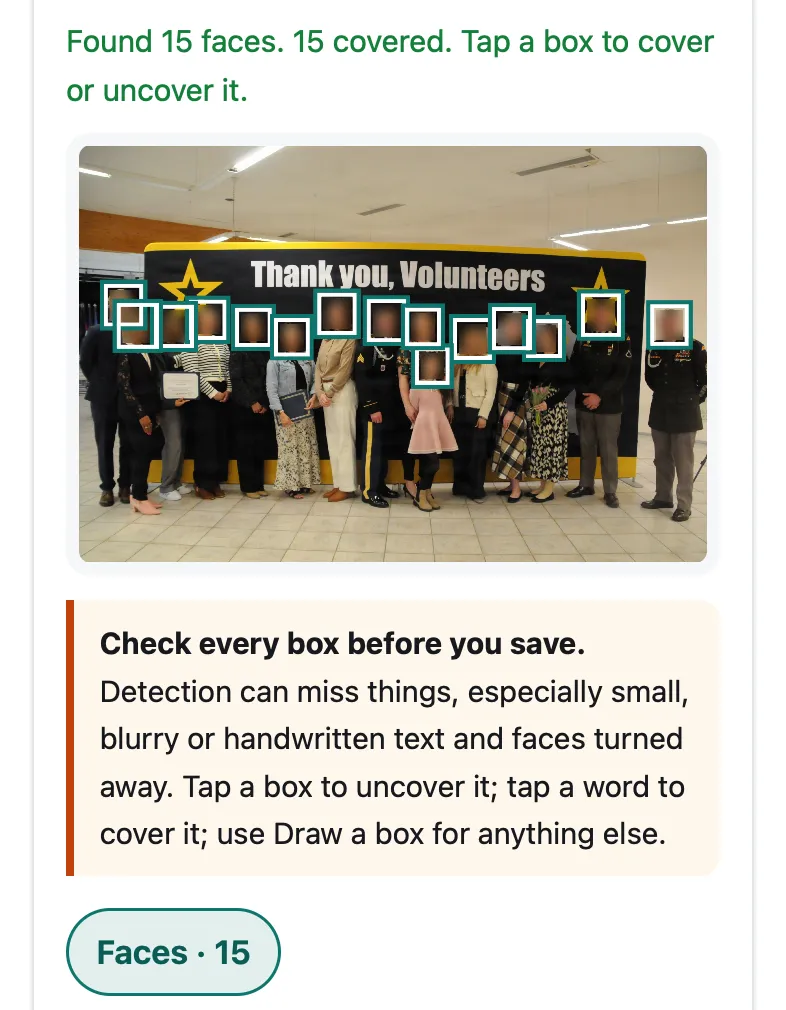
Pip in Safari’s engine at iPhone 15 size. Photo: “Group photo for Hohenfels volunteers”, U.S. Army photo by Bryan Gatchell, public domain (Wikimedia Commons).

How well does it find faces?
We tested the face finder on four public-domain photos and counted by hand.
| Photo | Faces visible | Found | False boxes |
|---|---|---|---|
| Group of 15 adults and a child, facing the camera | 15 | 15 | 0 |
| Group of 13 volunteers outdoors, hats and sunglasses | 13 | 13 | 0 |
| Family of 4 seen from the side and back, far away | 4 | 0 | 0 |
| 3 boys looking down at a table (black and white) | 3 | 0 | 0 |
Measured November 22, 2026, on a Mac with an Apple M4 chip. Finding the faces took 0.11 to 0.12 s per photo in WebKit (Safari’s engine) and 0.07 to 0.10 s in Chromium, once the face finder had loaded. Photos from Wikimedia Commons; sources are listed in our test files.
Pip uses Google’s MediaPipe face detector with its full-range model, which is made for faces farther from the camera. We compared it with the short-range model (made for selfies) on the two group photos: run on the whole photo, the short-range model found 1 of 28 faces and the full-range model 10 of 28. Checking the photo whole and then in overlapping tiles, as Pip does, the full-range model found all 28 with no false boxes; the short-range model with small tiles found 26 but also boxed 5 things that were not faces, such as hands and a bare foot.
What can iPhone’s own Photos app do?
- Markup (open the photo, tap Edit, then Markup) draws, adds shapes, text and stickers, but has no blur or pixelate tool, according to Apple’s Markup guide. A sticker or a filled shape over a face works and is simple.
- Clean Up (iPhone 15 Pro, iPhone 15 Pro Max, iPhone 16 and later, with Apple Intelligence on): Apple’s iOS 26 guide notes that “if you brush over a person’s face, the face may become blurred with a pixelated effect” (Apple). The iOS 27 version of the page no longer mentions it, and Apple says Clean Up isn’t available in every language or region, so try it on your phone.
- Edits in Photos can be undone with Revert to Original, because Photos keeps the original on your phone.
If Clean Up works on your iPhone and you have one or two faces, it’s a good option. For a group photo, a phone without Apple Intelligence, or a blur you can choose, use the tool above.
How do you blur faces on Android?
Google Photos for Android has a Redact brush in Markup (Edit, Markup, Redact), which Google describes as a way to “blur or remove sensitive info” (Google Photos Help). You brush over each face yourself. Pip works in Chrome on Android the same way as on iPhone, and finds the faces for you.
What else should you check before posting a group photo?
- Faces it can’t see: people in profile, in the background, reflected in windows or mirrors. Our guide to blurring strangers’ faces in the background shows how small a face it can find.
- Name tags, jerseys and school logos: tap Find text too, or draw a box.
- Where it was taken: Pip’s copy has no location data. If you post the original instead, see how to remove location from a photo.
- Kids: our guide to blurring kids’ faces before posting covers what else gives a child’s school or home away.
For one face, an emoji is often the friendliest look; for a crowd, blur. For other parts of a picture, like a screen or a document on a desk, see how to censor part of a picture on iPhone.
Questions people ask
Can I blur faces on iPhone without an app?
Yes. Open this page in Safari, choose the photo from your library, and Pip blurs the faces in the browser; Save to Photos puts the copy in your library. Apple's Markup has no blur tool. On iPhone 15 Pro and later with Apple Intelligence, Photos' Clean Up tool has pixelated faces you brush over, according to Apple's iOS 26 guide.
Is the blur strong enough that nobody can recognize the face?
Pip blurs the whole head area, hair and chin included, with a blur radius of a sixth of the face's size, three passes, plus a little noise, so the face becomes a smudge of color. If you want no trace at all, choose the solid box or an emoji, which replace the face completely.
Why didn't it find every face?
The face finder looks for faces turned toward the camera. Faces in profile, looking down, turned away, covered by a hat or mask, or very small can be missed: in our tests it found none of three boys looking down at a table. Turn on Draw a box and drag over any face it missed.
Does blurring the photo remove where it was taken?
Pip's saved copy is redrawn from the pixels, so it has no GPS location, camera model or date. If the original had a location, the tool says Location data removed.
Can I keep one face and blur the rest?
Yes. Every face starts covered; tap a face to uncover it, and tap again to cover it.
Related
- Blur kids' faces before postingBlur or cover your kids' faces (or their friends') before you post a photo, and remove where it was taken. Step by step, free, in your browser.
- Censor a picture on iPhoneCover part of a photo or screenshot on iPhone so it can't be seen or undone: Markup's filled shapes, the marker trap, Clean Up, or blur in Safari.
- Remove photo locationSee whether a photo carries its GPS location, camera and date, then save a copy without them, without re-saving the picture. In your browser, free.
- All Pip toolsHide faces, names and numbers in screenshots and photos