Hide names in a chat screenshot
Open the screenshot below and keep Names in a chat selected: Pip covers the contact name in the header, sender labels in group chats, names in messages, phone numbers, emails, @usernames and addresses with solid boxes. On our two test chats it covered 15 of 15 planted details. Tap to fix anything, then save.
Hide names in a chat screenshot
Choose or paste a screenshot
or drop it here, or press Ctrl+V / ⌘V
You picked several images. Batch (a whole set at once) is part of Pro, coming soon; we opened the first one.
Check every box before you save. Detection can miss things, especially small, blurry or handwritten text and faces turned away. Tap a box to uncover it; tap a word to cover it; use Draw a box for anything else.
Location data removed. The original had GPS coordinates in it; the copy you save has none.
Pro is coming soon · $9.99 lifetime or $2.99 a month
- No daily limit (the free plan will allow 3 images a day)
- Batch: a whole set of screenshots or photos at once
- Video face blur (later)
Everything above is free while we launch. Leave your email and we'll write once, when Pro is ready.
Runs in your browser. Nothing is uploaded. No sign-up.
What gets covered in a chat screenshot?
With Names in a chat selected, Pip covers these automatically, with solid boxes:
- The contact or group name in the header, and the line of member names under a group’s name.
- Sender labels in group chats (the colored name above each message), including ones that are phone numbers, like “+1 (555) 013-7765”.
- First names inside messages (“Can you send Maria’s email too?”) when the name is a common first name, and full names after Hi, Dear, To or From.
- Phone numbers, emails and @usernames, even when a number wraps onto the next line of a bubble. More on formats in how to hide a phone number in a screenshot.
- Street addresses, with the city on the next line.
Amounts, links and order numbers are found too but left visible: tap them if you want them hidden. If you also want card or account numbers covered, switch to All private text.
How well does it work?
We made two fictional chat screenshots at iPhone 15 size (1179 × 2556 pixels) and marked every private detail in them, then checked the saved images pixel by pixel to see whether each detail’s letters were still visible.
| Test screenshot | Private details | Covered automatically | Time to read (Safari’s engine) |
|---|---|---|---|
| iMessage-style chat, light mode, blue bubbles | 6 | 6 | 0.76 s |
| WhatsApp-style group chat, dark mode | 9 | 9 | 0.95 s |
Measured November 22, 2026, in Playwright’s WebKit 27.2 (the engine inside Safari) on a Mac with an Apple M4 chip, after the text reader had loaded. Expect a few seconds on a phone. The screenshots are our own test files, so treat this as a best case: real chats have more variety.
White text on a blue iMessage bubble is a classic miss for text readers, because they decide once, for the whole picture, which color is ink. Pip finds blocks of the less common color, flips them and reads them on their own, which is how “Maria’s” in a blue bubble got covered.
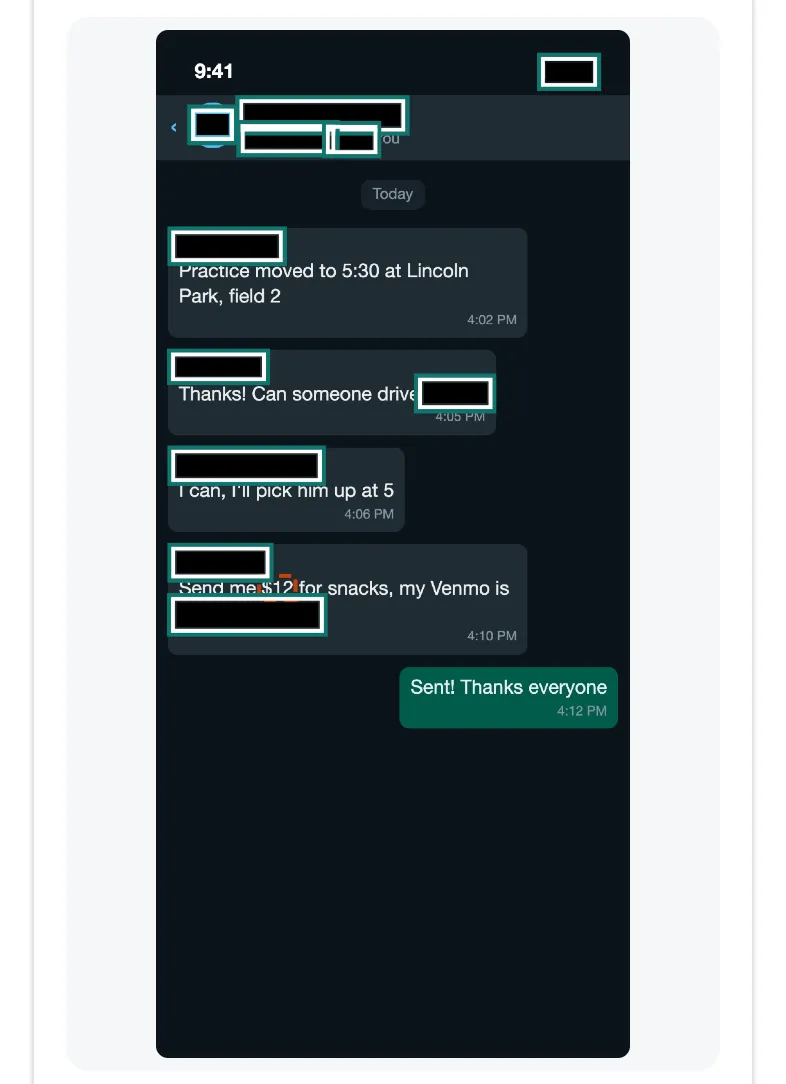
Our fictional dark-mode group chat after Pip: names, the phone number sender and a payment username covered; the messages themselves left readable.
How do you hide names in a chat screenshot on iPhone?
- Take the screenshot: press the side button and volume up together. If you need more of the conversation, take several screenshots; Messages has no full-page capture.
- Open this page in Safari, tap Choose a screenshot or photo, then Photo Library, and pick it.
- Keep Names in a chat selected. Wait for “Found…” (the first time, Safari downloads the 7 MB text reader).
- Check every box. Tap a box to uncover it, tap a word to cover it, or use Draw a box for profile pictures and anything else.
- Tap Save to Photos or share, then Save Image. Send the saved copy, not the original.
Without any tool, Apple’s Markup can cover a name with a filled shape (in Photos: Edit, Markup, the Add button, Add Shape, then a solid fill at full opacity); our guide to censoring a picture on iPhone has the details. Avoid the marker for this: unless its opacity is at full, the name can show through.
What about Android and WhatsApp?
On Android, Google Photos now has a Redact brush (Edit, Markup, Redact), rolled out globally in September 2026 according to Google’s announcement. It works, but you brush over each name yourself. In WhatsApp, take a normal screenshot of the chat and open it here; the same steps apply.
What should you check before you send it?
- The header and the top bar: contact name, initials, profile picture, “last seen” lines that name someone.
- Quoted replies: a reply bubble repeats the original sender’s name in small text. Small text is the easiest to miss; tap it if it isn’t boxed.
- Notification banners at the top of the screenshot.
- Photos in the chat: faces, house numbers and plates (see how to blur faces in a photo).
- The file itself: a screenshot carries no location, but a photo you attach might; Pip’s saved copy has none. For photos you send as they are, see how to remove location from a photo.
If a chat might be used as evidence later, keep the original unedited screenshots too, and share the covered copy only where the names aren’t needed. Pip is for protecting people’s privacy, not for changing what a conversation says.
Questions people ask
How do I hide a name in a screenshot?
Open the screenshot here with Names in a chat selected. The contact name at the top, sender names in group chats and first names inside messages are boxed for you. Check the result, tap any name it missed, and save. On iPhone you can also draw a filled shape over the name in Markup; Markup has no blur tool.
How does it know which words are names?
From where they sit and what they look like: the short line at the top of a chat screenshot, a short line in capitals right above a message (a sender label), words after Hi, Dear or To, and common first names followed by a surname. Names that don't look like names, such as nicknames or emoji, can be missed, so check every box.
Should I also hide the profile picture?
If the person could be recognized from it, yes. Tap Find faces too and Pip looks for faces in the screenshot, or turn on Draw a box and drag over the picture. Initials in a gray circle (iMessage's default) are only covered if you tap them.
Does this work with dark mode and WhatsApp screenshots?
Yes. Our test set includes a dark-mode group chat with colored sender names, where all 9 planted details were covered, and an iMessage-style chat with white text on blue bubbles, which the text reader reads separately with the colors flipped.
Can the other person see the names I covered?
No. The saved image is a new PNG with solid boxes drawn into the pixels and no layers or metadata, so the covered names aren't in the file at all.
Related
- Blur text in a screenshotHide names, numbers and emails in a screenshot so they can't be read back. Pip covers them in your browser, nothing uploaded. Free, works on iPhone.
- Blur faces in a photoBlur every face in a group photo in Safari, no app to install. Pip finds faces in your browser and saves a copy without location data. Nothing uploaded.
- Remove photo locationSee whether a photo carries its GPS location, camera and date, then save a copy without them, without re-saving the picture. In your browser, free.
- All Pip toolsHide faces, names and numbers in screenshots and photos