How to blur kids' faces before posting
Open the photo in the tool below with Faces selected: every face is covered; tap the faces you want to keep and choose blur, an emoji or a solid box. Then save and post the saved copy, which also has the photo's location removed. Check for faces it missed (children looking down or turned away often are) and for name tags or school logos.
Most people blur kids’ faces for a simple reason: the children can’t say yes yet, and a photo posted today can be found years from now. The other common reason is other people’s children. A birthday or team photo usually includes kids whose parents haven’t agreed to them being online.
How do you blur kids’ faces in a photo?
Cover the faces in your photo
Choose or paste a photo
or drop it here, or press Ctrl+V / ⌘V
You picked several images. Batch (a whole set at once) is part of Pro, coming soon; we opened the first one.
Check every box before you save. Detection can miss things, especially small, blurry or handwritten text and faces turned away. Tap a box to uncover it; tap a word to cover it; use Draw a box for anything else.
Location data removed. The original had GPS coordinates in it; the copy you save has none.
Pro is coming soon · $9.99 lifetime or $2.99 a month
- No daily limit (the free plan will allow 3 images a day)
- Batch: a whole set of screenshots or photos at once
- Video face blur (later)
Everything above is free while we launch. Leave your email and we'll write once, when Pro is ready.
Runs in your browser. Nothing is uploaded. No sign-up.
- Open the photo in the tool above: tap Choose a screenshot or photo (on iPhone, Photo Library), or drop the file on it.
- Wait for the faces to be found. The first time, your browser downloads the face finder, about 16 MB; after that it takes a fraction of a second.
- Tap the faces you want to keep. Every face starts covered; tapping uncovers it.
- Pick a style. Emoji is the friendliest look for kids (choose a smile, a star, a heart or a monkey covering its eyes); Blur looks natural; Solid box hides the most.
- Look for misses and turn on Draw a box to cover them (see below).
- Save and post the saved copy, not the original.
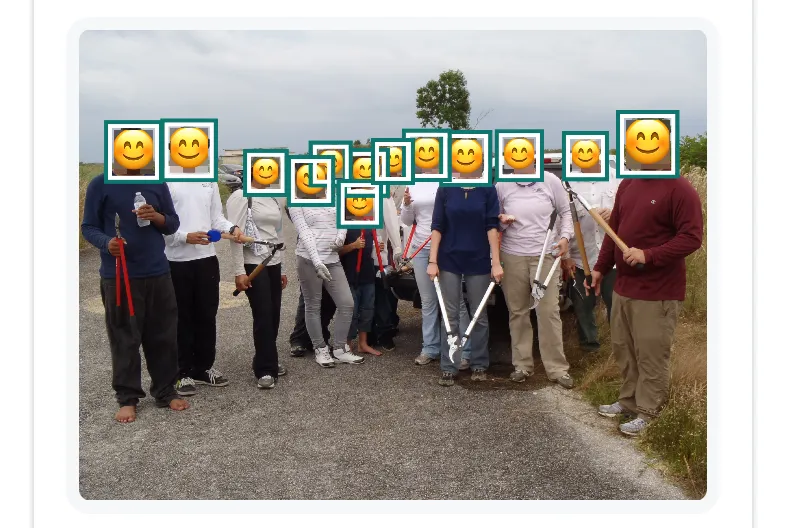
Pip’s emoji style on a public-domain photo: “Happy group of Volunteers”, Everglades National Park, National Park Service (Wikimedia Commons). All 13 faces were found.

Which faces does it miss?
The face finder looks for faces turned toward the camera. That covers most posed family and team photos: in our tests it found all 15 faces in one group photo and all 13 in another, including two boys standing among the adults. It struggles with exactly the shots parents take most:
- Kids looking down at a cake, a game or a drawing. In a public-domain photo of three boys bent over an art table, it found none of the three.
- Kids seen from the side or from behind, or far away. In a family picnic photo taken from a distance, it found none of four.
- Faces partly covered by hands, hats, masks or face paint.
- Tiny faces in the background of a big scene; see blurring strangers’ faces in the background for how small is too small.
So look at every child in the photo before saving. If one isn’t boxed, turn on Draw a box and drag over the face. For the faces it does find, the box already includes hair and chin, which a face finder doesn’t on its own; Pip enlarges each box for that reason.
What else in a photo can identify a child?
A face is only one clue. Before you post, look for:
- Names: name tags, a jersey with a name, a name on a backpack or a birthday banner. Tap Find text too and Pip reads the text in the photo so you can tap to cover it, or draw a box.
- The school: logos on uniforms, a sign on the building, a school bus number.
- Home: a house number, a street sign or a car’s license plate in the background; see how to blur an address in a photo.
- Where and when: the photo file itself usually carries the GPS location and the time it was taken. The copy Pip saves has neither, and if the original had a location the tool says “Location data removed”. For photos you post as they are, see how to remove location from a photo.
Can you do it with the phone’s own tools?
Partly. On iPhone, Photos’ Markup has no blur, but you can cover a face with a sticker or a filled shape (Edit, Markup, the Add button). On iPhone 15 Pro and later, Clean Up has pixelated faces you brush over, according to Apple’s iOS 26 guide. Our page on blurring faces on iPhone compares these. On Android, Google Photos’ Markup has a Redact brush. All of these work one face at a time; for a group photo, it’s quicker to let the tool find the faces and tap the ones to keep.
For more than faces, such as a screen, a letter on the fridge or a whiteboard in the background, see how to censor part of a picture on iPhone.
Is it better to blur, pixelate or use an emoji?
For people who don’t know the child, any strong cover works. For people who might know them, such as classmates and neighbors, a light blur can leave enough of a face, hairstyle or shape to recognize. Research has shown that software can match lightly blurred or pixelated faces to known people far better than chance (McPherson, Shokri and Shmatikov, 2016). Pip’s blur and pixels are deliberately heavy, scaled to the size of the face; an emoji or a box leaves nothing to match. The same goes for text: see can blurred text be unblurred?
Questions people ask
Why do people blur kids' faces on social media?
Mostly because the children can't agree to it yet and photos stay online for years. Parents also blur other people's children in group shots, since their parents may not want them posted, and some blur faces when the photo shows a school, a house or a routine.
Is an emoji over the face enough?
Yes, if it covers the whole face. Pip pixelates the face first and then draws the emoji over it, so nothing shows at the corners of a round emoji. A light blur is the weakest option for faces of people who know the child; Pip's blur is strong, but an emoji or a box leaves nothing at all.
Can I blur only my friends' kids and keep my own?
Yes. Every face is covered at first; tap a face to uncover it and it stays as it is.
Does posting a photo show where it was taken?
It can. Photos straight from a phone usually carry GPS coordinates in the file, and what happens to them depends on the app you post with. The copy Pip saves has no location, camera or date data at all.
Related
- Blur faces in a photoBlur every face in a group photo in Safari, no app to install. Pip finds faces in your browser and saves a copy without location data. Nothing uploaded.
- Remove photo locationSee whether a photo carries its GPS location, camera and date, then save a copy without them, without re-saving the picture. In your browser, free.
- Censor a picture on iPhoneCover part of a photo or screenshot on iPhone so it can't be seen or undone: Markup's filled shapes, the marker trap, Clean Up, or blur in Safari.
- All guidesEvery Pip guide, by task.