How to censor part of a picture on iPhone
In Photos, open the picture, tap Edit, then Markup, then the Add button and Add Shape, and set a solid fill at full opacity over the part to hide. Don't use the marker unless its opacity is at full: semi-transparent strokes can be undone by brightening. Markup has no blur; for blur or pixels, open the picture in Safari in the tool on this page.
There are three good ways to censor part of a picture on an iPhone and one popular way that doesn’t work.
How do you censor part of a picture with Markup?
Apple’s Markup can draw a solid shape over anything, which is the safest way to hide it (Apple: add shapes):
- Open the picture in Photos and tap Edit, then Markup.
- Tap the Add button (the plus), then Add Shape, and choose the square.
- Drag it over the part to hide and pull its corners to size.
- In the toolbar, set the fill color to black (or any solid color) and the opacity to full.
- Tap Done.
You can also draw a rough rectangle with the pen and pause at the end: Markup turns it into a clean shape. A sticker works the same way for a face.
Why shouldn’t you use the marker?
Because it’s see-through. Markup’s marker and pen have an opacity slider (tap the selected tool, then drag the slider, per Apple’s Markup guide). The marker starts semi-transparent, and in 2018 9to5Mac showed that raising the exposure or brightness of a screenshot brings back the text under marker strokes. If you scribble, set the opacity to full first, or use a filled shape.
Can you blur or pixelate part of a picture on iPhone?
Not with Markup: it has no blur or pixelate tool. On iPhone 15 Pro, iPhone 15 Pro Max and iPhone 16 or later with Apple Intelligence, the Clean Up tool (Edit, Tools, Clean Up in iOS 27) removes objects, and Apple’s iOS 26 guide notes that “if you brush over a person’s face, the face may become blurred with a pixelated effect” (Apple). It’s meant for faces, not text or objects, and the note is no longer on the iOS 27 page, so results may vary.
For blur, pixels or an emoji on any iPhone, use the tool below in Safari. It runs in the browser, so there’s nothing to install, and the picture never leaves your phone.
Cover any part of your picture
Choose or paste a photo
or drop it here, or press Ctrl+V / ⌘V
You picked several images. Batch (a whole set at once) is part of Pro, coming soon; we opened the first one.
Check every box before you save. Detection can miss things, especially small, blurry or handwritten text and faces turned away. Tap a box to uncover it; tap a word to cover it; use Draw a box for anything else.
Location data removed. The original had GPS coordinates in it; the copy you save has none.
Pro is coming soon · $9.99 lifetime or $2.99 a month
- No daily limit (the free plan will allow 3 images a day)
- Batch: a whole set of screenshots or photos at once
- Video face blur (later)
Everything above is free while we launch. Leave your email and we'll write once, when Pro is ready.
Runs in your browser. Nothing is uploaded. No sign-up.
- Tap Choose a screenshot or photo and pick the picture from Photo Library.
- Faces are found and covered for you (tap one to uncover it). Draw a box is already on: drag over anything else you want to hide.
- Choose Blur, Pixels, Solid box or Emoji.
- Tap Save to Photos or share, then Save Image.
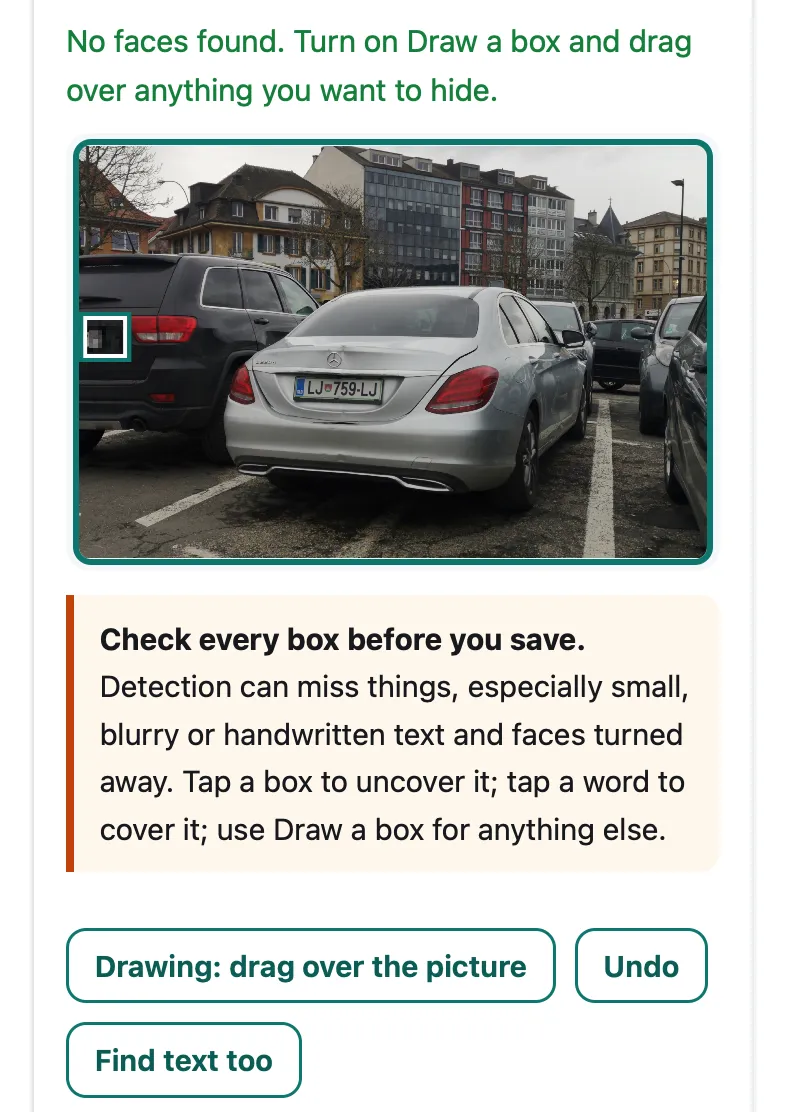
Drawing your own box in Pip, at iPhone 15 size in Safari’s engine. Photo: “Mercedes C-Class Slovenia plate” by crash71100, CC0 (Wikimedia Commons).

Pip’s blur and pixels are sized to what they cover, so they can’t be read back: on our test chat screenshot, a text reader read all 6 private details through a light 3-pixel blur, and none through Pip’s blur, pixels or box. The numbers are on our page about blurring text in a screenshot.
Can a censored picture be uncensored?
Search for “how to uncensor a picture on iPhone” and you’ll find that people try. What can be recovered:
- Semi-transparent marks: yes, often, by adjusting brightness and contrast.
- Light blur or small pixels over text: sometimes, as our test and published tools like Unredacter show; see can blurred text be unblurred?
- The original file: Photos keeps it on your phone so you can tap Revert to Original (Apple). In iOS 27, sharing with All Photos Data turned on (AirDrop only) sends the original with its edit history, so leave that option off.
- A solid, opaque cover flattened into the pixels: no. There’s nothing underneath any more.
Pip always saves a new, flattened image without metadata, so the covered parts aren’t in the file.
What about screenshots?
Right after taking a screenshot, tap the thumbnail in the corner: you can crop it by dragging the handles and tap Markup to draw on it (Apple). Cropping is the cleanest censor of all when the private part is at an edge. For names and numbers in the middle of a chat, the tool finds them for you; see how to blur text in a screenshot. For faces in photos, see how to blur faces on iPhone and, for passers-by, blurring strangers’ faces in the background, and for family photos, blurring kids’ faces before posting.
Questions people ask
How do you censor part of a picture on iPhone?
Open the picture in Photos, tap Edit, then Markup. Tap the Add button, choose Add Shape, drag the square over the part to hide and set its fill to a solid color at full opacity. Tap Done. For blur or pixels, use a browser tool such as the one on this page; Markup doesn't have them.
Can a censored picture be uncensored?
It depends on how it was censored. A semi-transparent marker can be reversed by brightening the image, and light blur or small pixels can sometimes be read or matched. A solid, fully opaque shape flattened into the image can't be undone. If you share the original file with its edit history, the uncensored original goes with it.
Can I blur part of a photo on iPhone without an app?
Not with Photos' Markup, which has no blur tool. On iPhone 15 Pro and later, Clean Up has pixelated faces you brush over (Apple's iOS 26 guide). Otherwise open the picture in Safari in a browser tool like Pip and choose Blur or Pixels.
Does Photos keep the original after I censor it?
Yes, on your phone: you can tap More, then Revert to Original. When sharing with AirDrop, Apple's All Photos Data option sends the original file with its edit history, so leave it off. Saving a new, flattened copy avoids the question.
Related
- Blur text in a screenshotHide names, numbers and emails in a screenshot so they can't be read back. Pip covers them in your browser, nothing uploaded. Free, works on iPhone.
- Blur faces in a photoBlur every face in a group photo in Safari, no app to install. Pip finds faces in your browser and saves a copy without location data. Nothing uploaded.
- Blur kids' faces before postingBlur or cover your kids' faces (or their friends') before you post a photo, and remove where it was taken. Step by step, free, in your browser.
- All guidesEvery Pip guide, by task.