Remove location from a photo before sending
Open the photo in the tool below: Pip shows whether it carries a GPS location, the camera and the date taken, then saves a copy without them. For JPEG, PNG, WebP and HEIC it removes only the metadata blocks and leaves the picture untouched. On iPhone, you can also turn Location off under Options when you share, or stop the Camera saving it.
See and remove a photo's location
Choose a photo to check
or drop it here
You picked several images. Batch (a whole set at once) is part of Pro, coming soon; we opened the first one.
Check every box before you save. Detection can miss things, especially small, blurry or handwritten text and faces turned away. Tap a box to uncover it; tap a word to cover it; use Draw a box for anything else.
Location data removed. The original had GPS coordinates in it; the copy you save has none.
Pro is coming soon · $9.99 lifetime or $2.99 a month
- No daily limit (the free plan will allow 3 images a day)
- Batch: a whole set of screenshots or photos at once
- Video face blur (later)
Everything above is free while we launch. Leave your email and we'll write once, when Pro is ready.
Runs in your browser. Nothing is uploaded. No sign-up.
How do you see and remove a photo’s location here?
- Open the photo in the tool at the top: Choose a photo, or drop it on the box. On iPhone, picking from Photos or Files both work.
- Pip reads the file’s metadata in your browser and shows what it found: the location (rounded to two decimals, about a kilometer, so it isn’t on your screen in full), the camera, the date taken and any other data blocks.
- Tap Remove location and other data. Pip writes a copy without them and tells you how it did it.
- Download it, or on a phone Save to Photos or share. Send that copy.
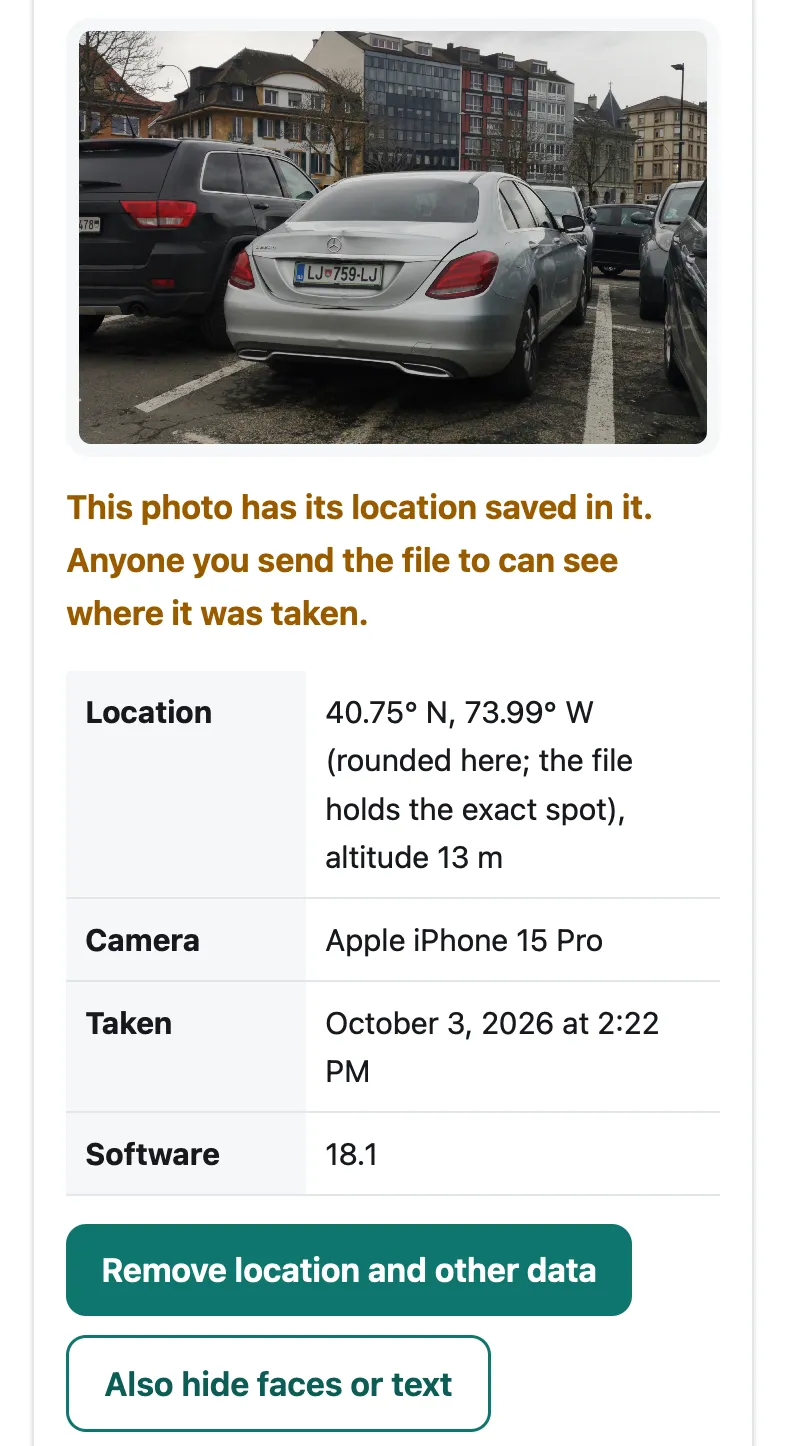
A test photo with sample GPS, camera and date data added by our test script, shown in Pip at iPhone 15 size. Photo: “Mercedes C-Class Slovenia plate” by crash71100, CC0 (Wikimedia Commons).

Does it re-save the picture?
No, for the common formats. A JPEG is a series of blocks: one holds the picture, others hold the EXIF data (camera, date, GPS), XMP data and sometimes a thumbnail or extra images. Pip copies the picture block and the color profile and leaves the rest out. In our test, a 662,226-byte photo became 661,888 bytes, and every pixel decoded from it was identical to the original. It also keeps one small flag, the rotation, so a portrait photo doesn’t turn sideways once the rest is gone.
| Format | Method | Picture changed? |
|---|---|---|
| JPEG (most photos) | Metadata blocks removed | No |
| HEIC (iPhone’s default) | EXIF and XMP overwritten in place, same file size | No |
| PNG, WebP | Metadata chunks removed | No |
| Anything else | Saved again as a JPEG, quality 92% | Slightly |
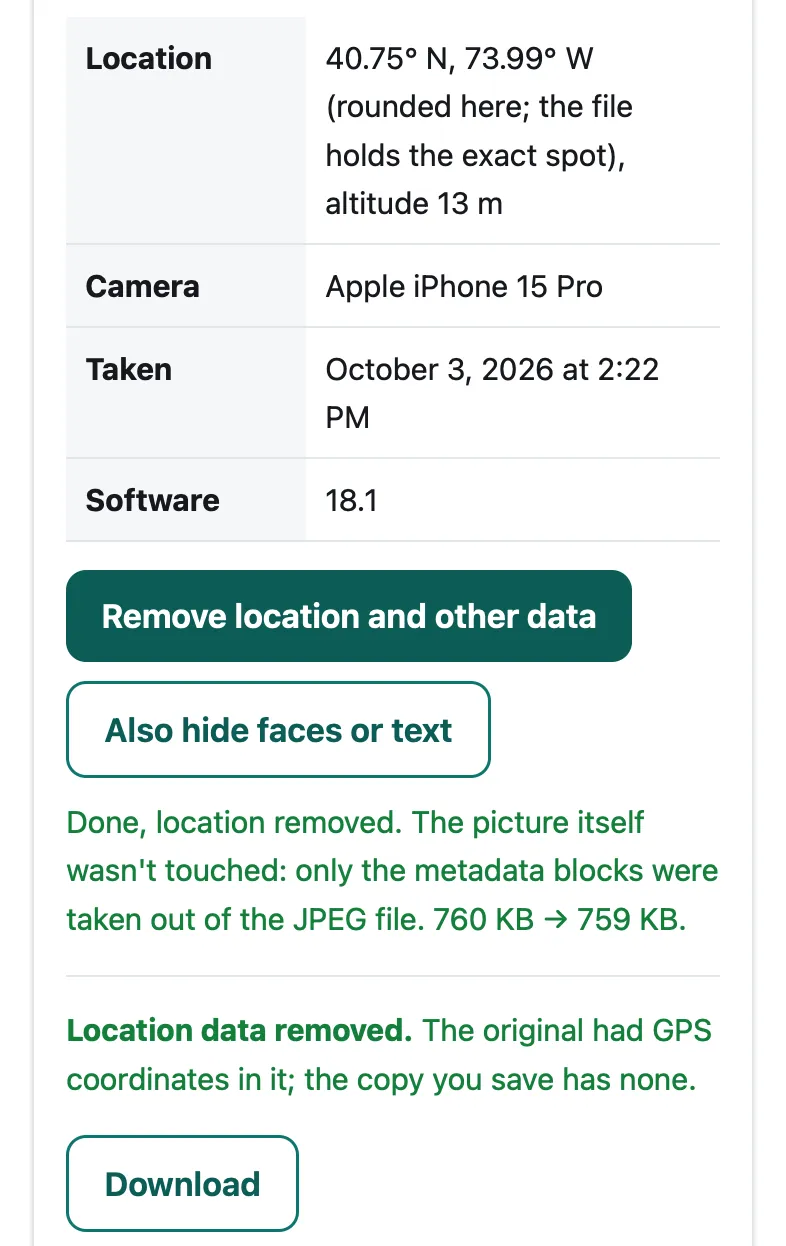
The same test photo after tapping Remove: Pip says which method it used and how the file size changed.
HEIC works even in browsers that can’t display HEIC, such as Chrome on Windows: the tool says it can’t show the photo but still cleans it.
Real photos do keep their location. A CC0 photo taken on an iPhone 11 that we downloaded from Wikimedia Commons in November 2026 still had its GPS coordinates in the file. An older camera in our test set had written a GPS section with no coordinates in it; Pip only reports a location when there are real coordinates.
How do you stop iPhone adding location to photos?
From Apple’s Personal Safety guide on location metadata (September 2026):
- Stop the Camera saving it: Settings, Privacy & Security, Location Services, Camera, then Never.
- Leave it out of one share: in Photos, tap Share, then Options, and turn off Location; “Location Not Included” appears above the Options button. The iOS 26 user guide describes the same switch. Apple’s iOS 27 guide lists other Options (file format, All Photos Data) and says sharing includes metadata such as location, so if you don’t see the Location switch, use one of the other ways.
- Remove it from the photo in your library: tap More, then Adjust Info, Adjust Location, No Location.
Apple doesn’t document whether Safari removes location when you upload a photo to a website, so don’t rely on it. When you open a photo in Pip, the file is read on your phone, which is how it can show you the location; nothing is sent anywhere.
How do you stop Android adding location to photos?
- Pixel Camera: Settings, More settings, turn off Save location (Google).
- Samsung Camera: Settings, General, turn off Location tags (Samsung).
- Google Photos: open the photo, More, Edit, Remove location. Google notes that “if the location of a photo or video was automatically added by your camera, you can’t edit or remove the location” (Google Photos Help), though Google also says links and other items you share don’t include location details by default.
- Samsung Gallery: tick Remove location data on the share screen, or open Details, Edit and remove the location (Samsung).
Android apps that use the system photo picker get photos with the location removed unless they ask for it, according to Android’s developer documentation. That protects you inside apps; a file you email or move to a computer can still carry it.
When is the built-in way enough?
If you share from Photos on iPhone and see the Location switch, or you’ve turned off location for the camera, that’s enough for photos you take from now on. Use the tool when you’re sending a file (email, a web form, a chat app that sends files), when it’s an older photo, or when you want to see for yourself what the file says. If the photo also shows faces, a house number or a plate, Pip’s other tools cover those and the saved copy has no location either: see how to blur faces in a photo, how to blur an address in a photo and blurring kids’ faces before posting.
Questions people ask
Does sending a photo send its location?
Often, yes. A photo taken with Location Services on for the Camera carries GPS coordinates in the file, and Apple's iOS 27 guide says sharing a photo includes its metadata, such as location. Some apps and services remove it; others don't. Check the file here before you send it if it matters.
How do I remove the location from a photo on iPhone?
For one share: in Photos tap Share, then Options, and turn off Location (Apple's Personal Safety guide, September 2026). To change it in your library: tap More, then Adjust Info, Adjust Location, No Location. To stop it at the source: Settings, Privacy & Security, Location Services, Camera, Never.
How do I remove the location from a photo on Android?
In Google Photos, open the photo, tap More, then Edit, then Remove location; Google notes you can't edit or remove a location added automatically by your camera. On Samsung, the Gallery's share screen has a Remove location data option, and you can delete it under Details. To stop it, turn off Save location in Pixel Camera or Location tags in Samsung Camera.
Does removing the location lower the photo's quality?
Not with Pip for JPEG, PNG, WebP and HEIC: it takes the metadata blocks out of the file and leaves the compressed picture data exactly as it was. In our test every pixel of the cleaned JPEG matched the original. Other formats are re-saved as a high-quality JPEG, and the tool tells you which method it used.
Do screenshots have location data?
Screenshots don't record GPS. They can still show a place, such as a map or an address in the picture; to cover that, see how to blur an address in a photo.
Related
- Blur faces in a photoBlur every face in a group photo in Safari, no app to install. Pip finds faces in your browser and saves a copy without location data. Nothing uploaded.
- Blur kids' faces before postingBlur or cover your kids' faces (or their friends') before you post a photo, and remove where it was taken. Step by step, free, in your browser.
- Blur an address in a photoCover a street address, house number or shipping label in a photo or screenshot before you post or send it. Free, in your browser, nothing uploaded.
- All Pip toolsHide faces, names and numbers in screenshots and photos